Transcribing a single video is a pleasant enough process. You pick a model, wait, read the transcript, fix a few words, export. It takes a few minutes of attention spread over a longer stretch of waiting.
Now do that twenty times. The waiting is unchanged — the machine is just as fast — but every video needs you present at three separate moments: when transcription ends and translation must be started, when translation ends and burn-in must be configured, and when burn-in ends and the next video must be chosen. Twenty videos is sixty interruptions.
A batch run collapses all of that into one decision at the start.
What a batch actually does
You select several videos, set the options once, and the app runs each video through the stages you chose, one after another:
- Transcribe with the Whisper model you picked.
- Translate the resulting subtitles into a target language, using the local model.
- Burn the subtitles into a copy of the video and save it to a folder you chose.
Any of the three can be switched off. Transcribe-only is useful when you just want text. Transcribe-and-translate without burn-in gives you subtitle files to hand to an editor. Burn-only works on videos that already have a finished transcript.
Step 1 — Select the videos
On the Videos page, use Batch process to enter selection mode, then tick the videos you want. There is a Select all control, which matters more than it sounds: once a library runs to dozens of entries, ticking boxes one page at a time is not a workflow anyone completes.
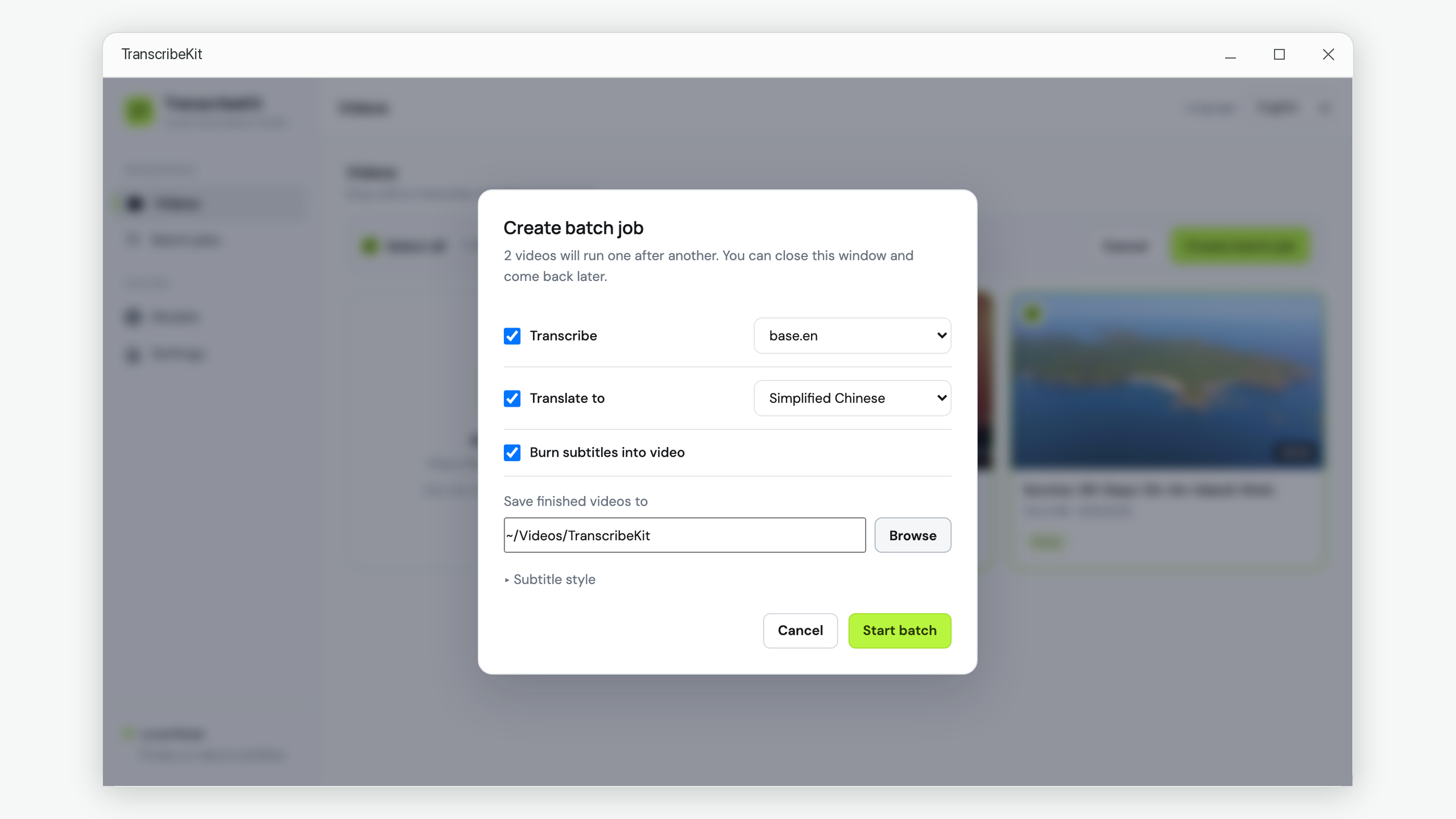
With at least one video selected, Create batch job opens the setup dialog.
Step 2 — Set the options once
The three stages are enabled by default, because that is the common case. What you need to decide:
- Which Whisper model. The list prefers models you have already downloaded. This choice applies to every video in the batch.
- Which target language, if translating. One language per batch — run a second batch for a second language.
- Where finished videos go, if burning in. A folder, chosen once.
- Subtitle style, under the collapsed section: font, size, colour and vertical margin. The defaults are legible; open it only if you have a house style.
Then start it and close the window if you like. The batch does not depend on the dialog staying open.
Step 3 — Leave it alone
The Batch jobs page shows overall progress and, expanded, each video with its own three stage markers. A video that is mid-translation shows exactly that, with a percentage.
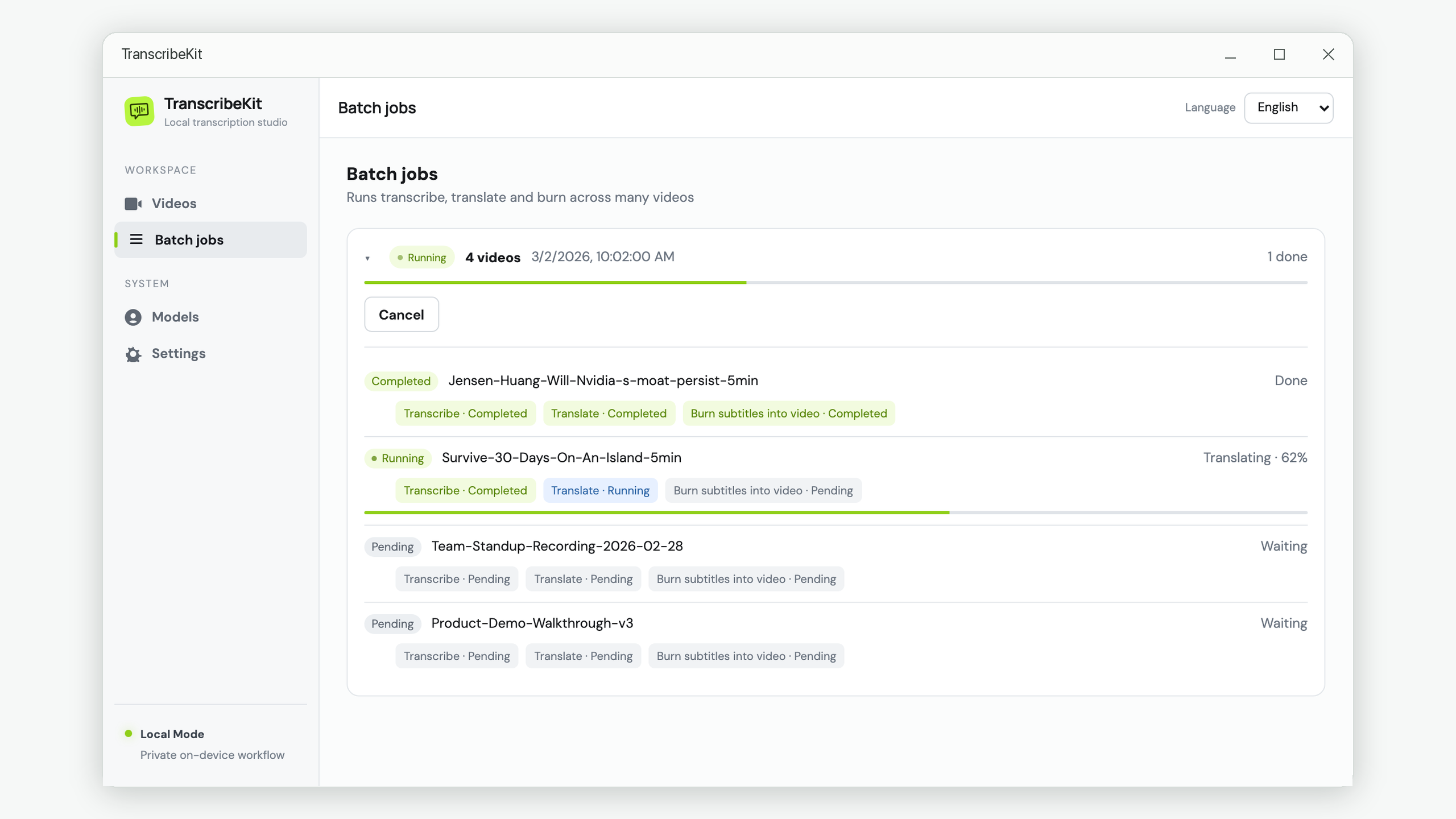
Videos are processed one at a time rather than several at once, so the machine stays usable for other work while a batch runs. A long queue does not get slower as it goes.
Three design decisions here are worth knowing about, because they determine what happens when something goes wrong.
One failure does not stop the batch
If a video fails — the source file was moved, the audio is unreadable, the video cannot be written — that item is marked failed, the stage it died at is recorded, and the run moves to the next video. You come back to nineteen finished videos and one that needs attention, not to a queue that stopped at video three overnight.
Retry resumes, it does not restart
This is the part that saves the most time. Each stage checks whether its result already exists before doing anything. A video that transcribed correctly and then failed during translation picks up at translation on retry — it does not transcribe again. One that only failed at burn-in goes straight back to burning in.
You can retry a single item, or use Retry failed to requeue every failed item in the batch at once.
Closing the app does not lose the run
If the app closes partway through — deliberately, or because the machine restarted — the batch picks up again next time you open it. Finished videos stay finished, and whichever one was mid-run is simply started over.
A realistic workflow
What this looks like in practice, for a set of recorded talks:
- Add the videos to the library.
- Select all of them, enable all three stages, pick a model and a target language, choose an output folder.
- Start it and go do something else.
- Come back, check whether anything failed, retry those.
- Open the ones whose transcripts matter most and fix the words the model got wrong — proper nouns, mostly.
Step five is the one that still needs a human, and it always will. Everything before it is now a single decision rather than sixty.
When not to use a batch
Being straight about it:
- One or two videos. The setup dialog is more overhead than it saves. Use the normal flow.
- Transcripts you need to correct before translating. A batch translates whatever the transcript says, errors included. If accuracy in the second language matters, transcribe in a batch, correct by hand, then translate.
- Videos needing different settings. One model, one target language, one subtitle style per batch. Mixed requirements mean multiple batches.
Queue a folder of videos and walk away
TranscribeKit runs transcription, offline translation and subtitle burn-in across many videos unattended — all on your own machine, with no account and nothing uploaded.
Get it from the Microsoft Store